
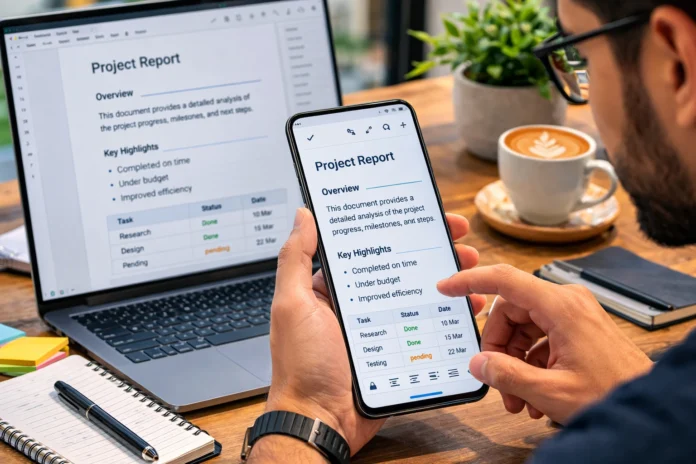
If you have ever opened a Word document on your Android phone only to find that everything looks completely different from when you edited it on a desktop, you already understand the frustration. Fonts shift, tables collapse, and spacing goes haywire. That is exactly why millions of users worldwide choose to download WPS, a lightweight yet powerful office suite that keeps your documents looking exactly as they should, even on a small screen.
Whether you are a student submitting assignments, a freelancer reviewing contracts, or a professional editing reports on the go, understanding how to use WPS effectively on Android can transform the way you work from anywhere.
What Is WPS and Why Should You Download It?
WPS Office is a free, feature-rich productivity application developed by Kingsoft. Available across Android, iOS, Windows, and macOS, it supports all major file formats, including DOCX, XLSX, PPTX, and PDF. The WPS下载 (WPS download) process takes less than a minute, and the app itself is remarkably compact compared to rival office suites.
What sets WPS apart from other mobile office tools is its formatting fidelity. When you open a complex document, one with custom fonts, multi-column layouts, or embedded tables, WPS renders it almost identically to how Microsoft Word would display it on a desktop. For professionals who frequently switch between devices, this consistency is not a luxury; it is essential.
The application has surpassed 1.5 billion downloads globally, which speaks volumes about its reliability and user trust across different operating systems and regions.
How to Download and Install WPS on Android
Getting started with WPS下载 on Android is straightforward. Open the Google Play Store, search for “WPS Office,” and tap Install. The app is free and does not require a Google account sign-in to begin using it. Once installed, you can open any existing document directly from your file manager, email attachment, or cloud storage.
If the Google Play Store is unavailable in your region, WPS also offers an official APK download from its website at wps.com. Always download from the official source to avoid modified or potentially unsafe versions of the application.
After installation, grant the necessary file permissions when prompted. This allows WPS to read and write documents stored on your device or connected cloud services like Google Drive, Dropbox, and OneDrive.
Editing Documents Without Losing Formatting on Android
This is where WPS truly earns its reputation. Most Android users worry that editing a document on their phone will ruin its formatting when reopened on a desktop. With WPS, that concern largely disappears, but only if you follow a few key practices.
Use Reading Mode and Editing Mode Wisely
WPS opens documents in Reading Mode by default, which protects your formatting from accidental changes. When you are ready to make edits, tap the pencil icon to switch to Editing Mode. Always switch back to Reading Mode before sharing or saving to ensure the layout remains intact.
Preserve Fonts With Embedded Font Support
One of the most common reasons formatting breaks on mobile is missing fonts. WPS addresses this by embedding font support directly within the app. When you encounter a document using a font not installed on your device, WPS substitutes it visually while preserving the original font metadata. This means when the file is reopened on a desktop, the correct font reappears without any intervention.
Avoid Resizing Images Manually
When editing documents containing images, avoid dragging image corners to resize them on a small touchscreen. Instead, tap the image once, select “Image Properties,” and enter exact dimensions. Manual resizing on a touchscreen is imprecise and can shift surrounding text or alter paragraph spacing.
Use Track Changes for Collaborative Editing
If you are collaborating with colleagues, enable Track Changes under the Review tab before making any edits. This ensures your modifications are visible and reversible, which prevents confusion when documents pass through multiple hands before finalization.
WPS Features That Make Mobile Editing Seamless
Beyond basic formatting preservation, WPS offers several tools that genuinely improve the mobile editing experience.
The built-in PDF converter allows you to export any document as a PDF directly from your phone with a single tap, which is invaluable when submitting forms or reports. The Presentation mode transforms PPTX files into a full-screen slideshow, useful for quick client presentations without needing a laptop. The spreadsheet editor handles complex Excel formulas reliably, something very few competing apps manage on Android.
WPS Premium unlocks additional features such as OCR (optical character recognition), which lets you scan physical documents and convert them into editable text. For students and researchers, this feature alone justifies exploring the upgrade.
Common Formatting Issues and How to Fix Them
Even with WPS, occasional formatting quirks appear. Here is how to handle the most common ones.
If text appears cut off at page edges, go to Document Settings and confirm the page margins match those of the original document. If tables appear misaligned, switch to desktop layout mode by tapping View and selecting “Print Layout,” which renders the document exactly as it would appear when printed.
For documents with unusual line spacing, highlight the affected text, open Paragraph Settings, and manually reset spacing to match the original values. These small adjustments take less than thirty seconds but ensure the document looks professional when reopened anywhere.
Conclusion
Learning how to use WPS effectively on Android is one of the smartest investments a mobile professional or student can make. From the moment you complete the WPS下载 process to the first time you open a complex document and see its formatting perfectly preserved, the difference is immediately obvious. WPS bridges the gap between desktop productivity and mobile convenience better than most alternatives, and it does so for free. Whether you are editing a contract, reviewing a presentation, or scanning a printed page, WPS on Android gives you the tools to do it right without compromise.
FAQs
Is WPS safe to download and use on Android?
WPS is a legitimate application developed by Kingsoft Office Software, a company with over 30 years of history. The app is available on the official Google Play Store and has been reviewed by millions of users. It does not require unnecessary permissions and complies with standard data privacy practices.
Does WPS for Android support Microsoft Office formats?
Yes. WPS fully supports DOCX, XLSX, and PPTX files, meaning you can open, edit, and save documents in Microsoft Office formats without converting them. Recipients using Microsoft Word or Excel will receive the file in a compatible format.
Will editing a document in WPS on Android change its formatting when opened on a PC?
In most cases, no. WPS is specifically designed to maintain formatting consistency across platforms. As long as you follow best practices such as using Print Layout mode and avoiding manual image resizing, your document will look the same across devices.
Does WPS work offline on Android?
Yes. WPS works completely offline for files stored locally on your device. Cloud-sync features require an internet connection, but reading and editing local documents requires none.
Is there a difference between WPS Free and WPS Premium for mobile users?
The free version covers the vast majority of everyday tasks, including document editing, PDF viewing, and format conversion. Premium adds advanced features like OCR, unlimited cloud storage, and ad-free use. For most users, the free version is more than sufficient.

